Your team's time, routes and visits — on the tasks in your tracker.
Your team's hours, kilometres and visits land in your task tracker on their own, with no reports from employees.



From starting the timer to the report in your tracker
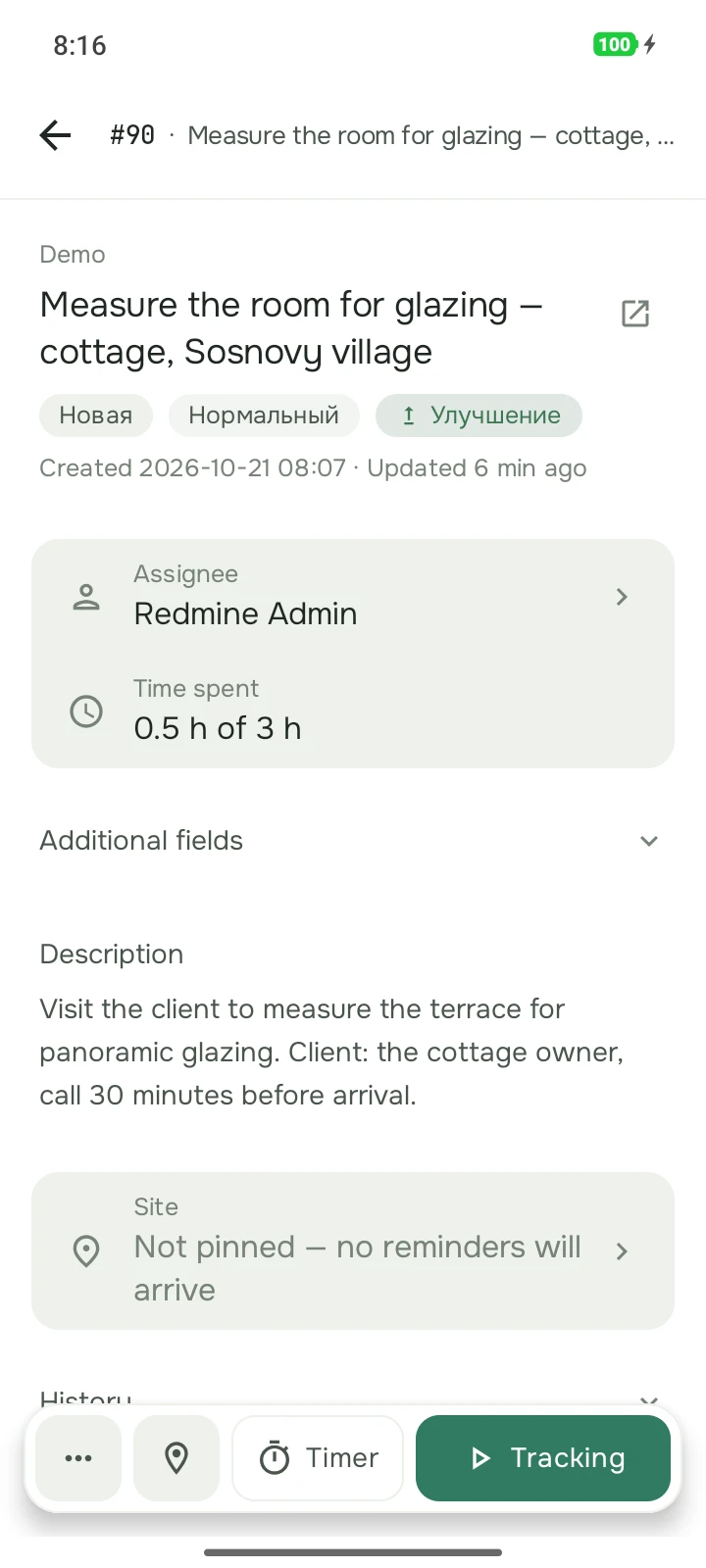
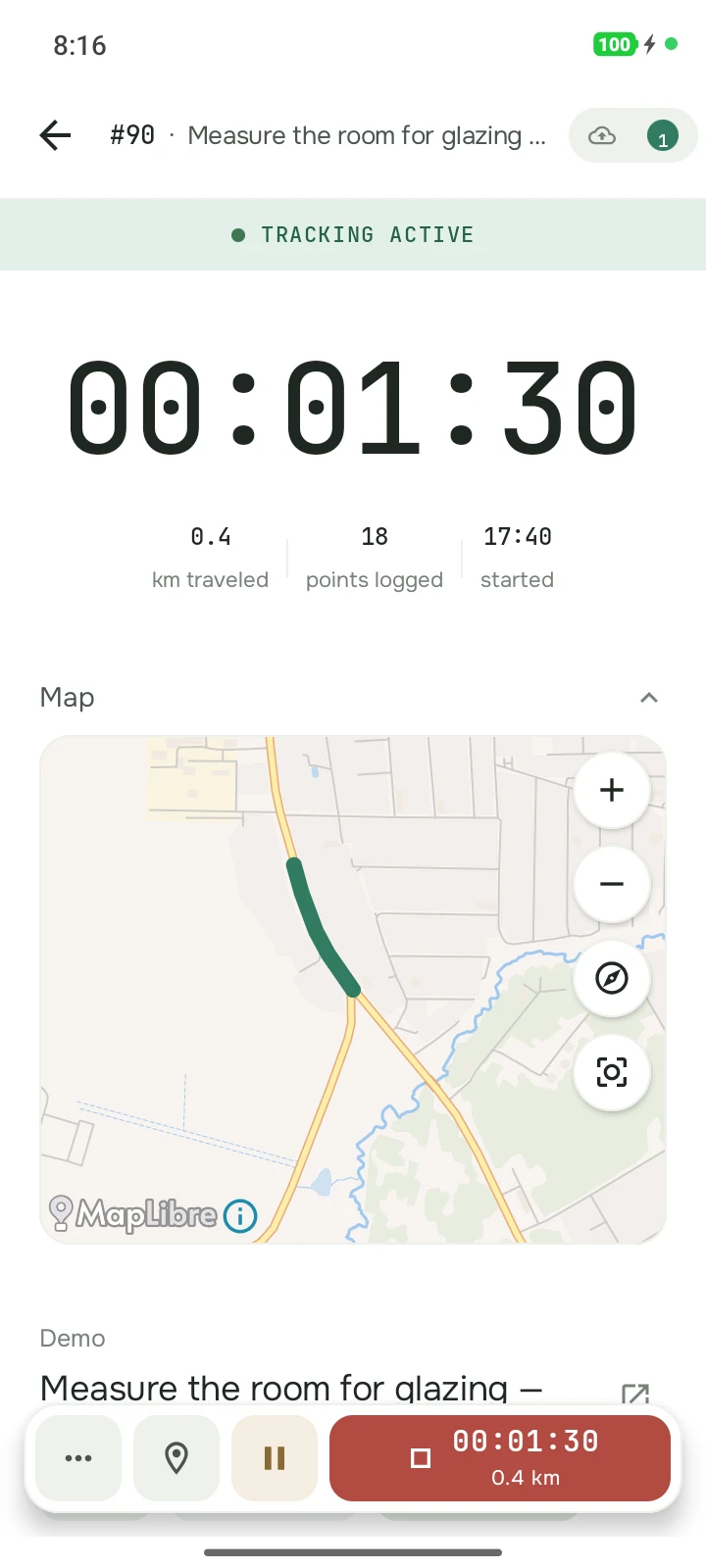
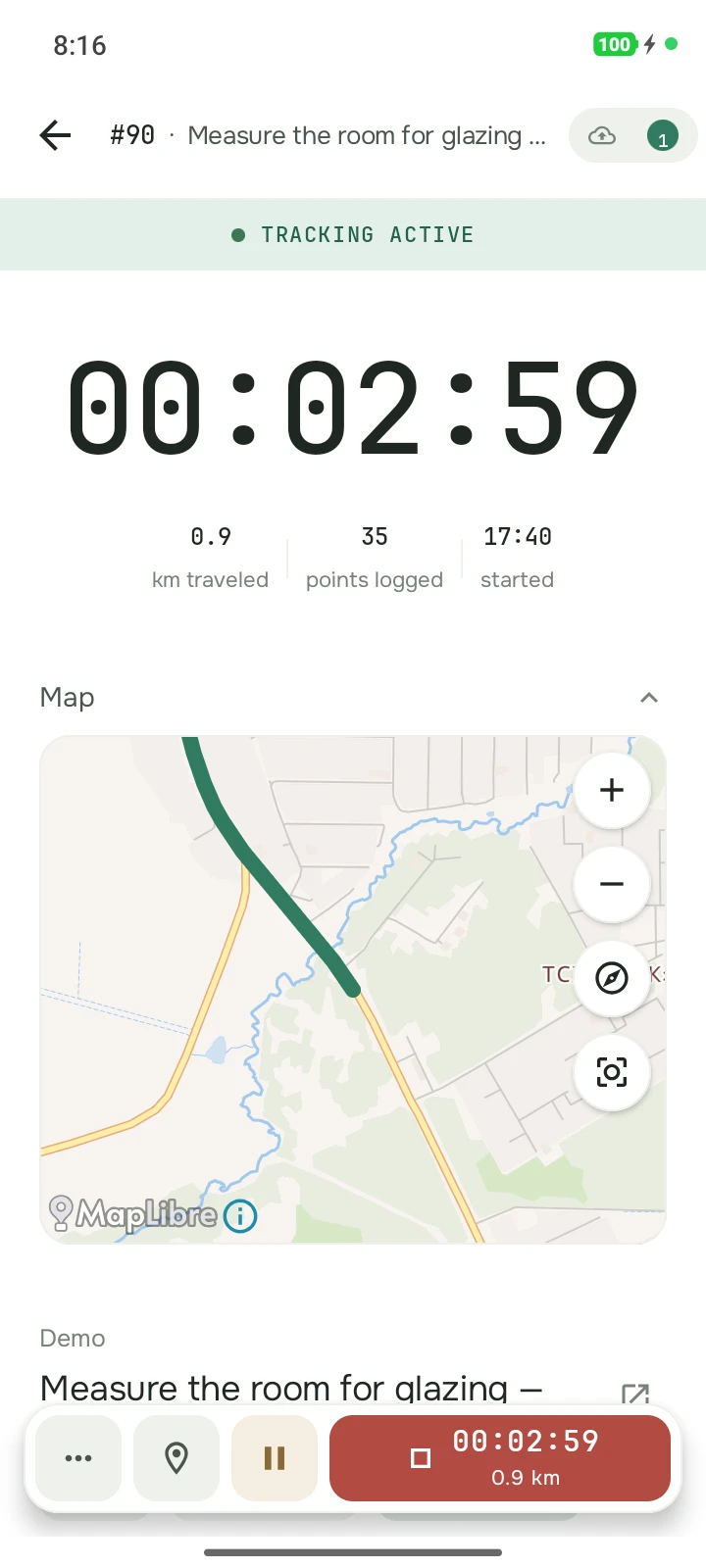
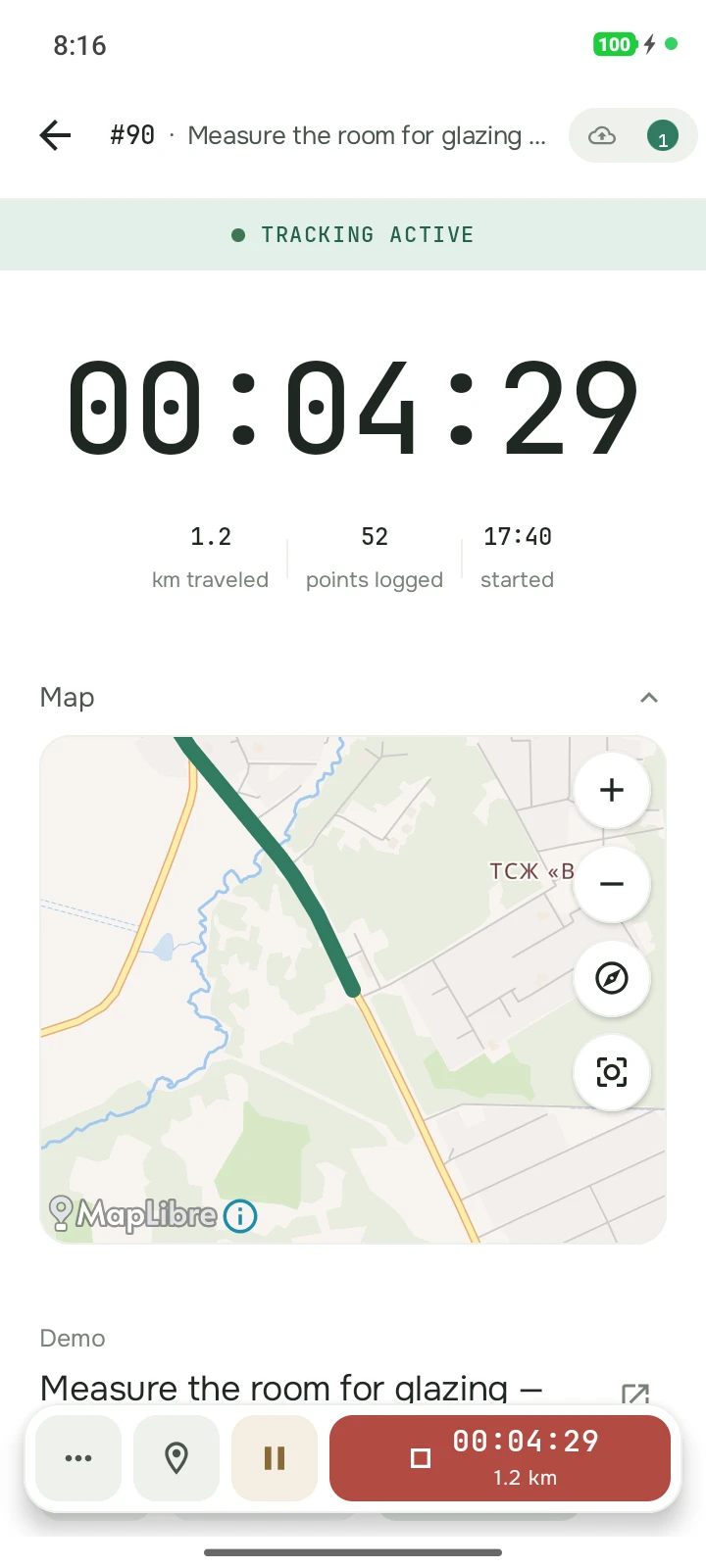
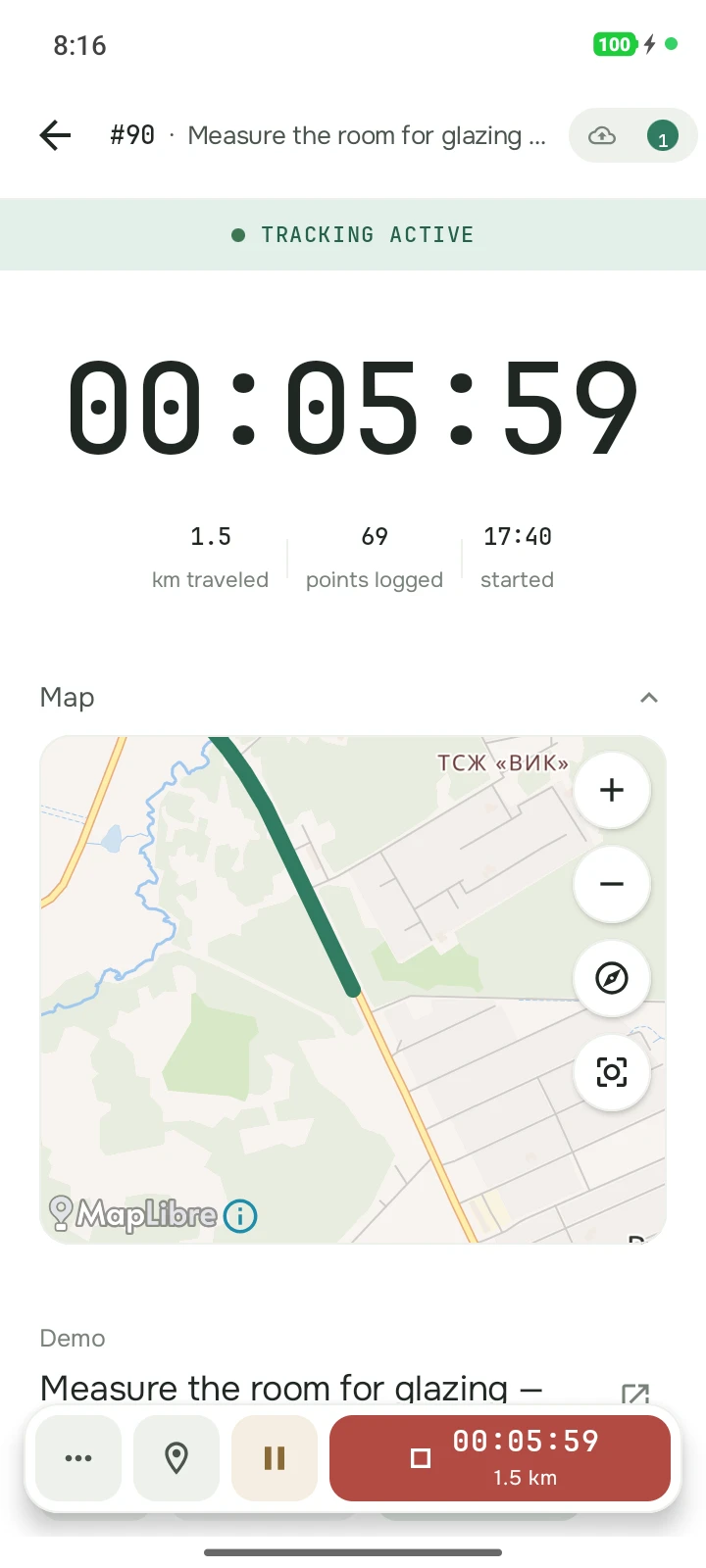
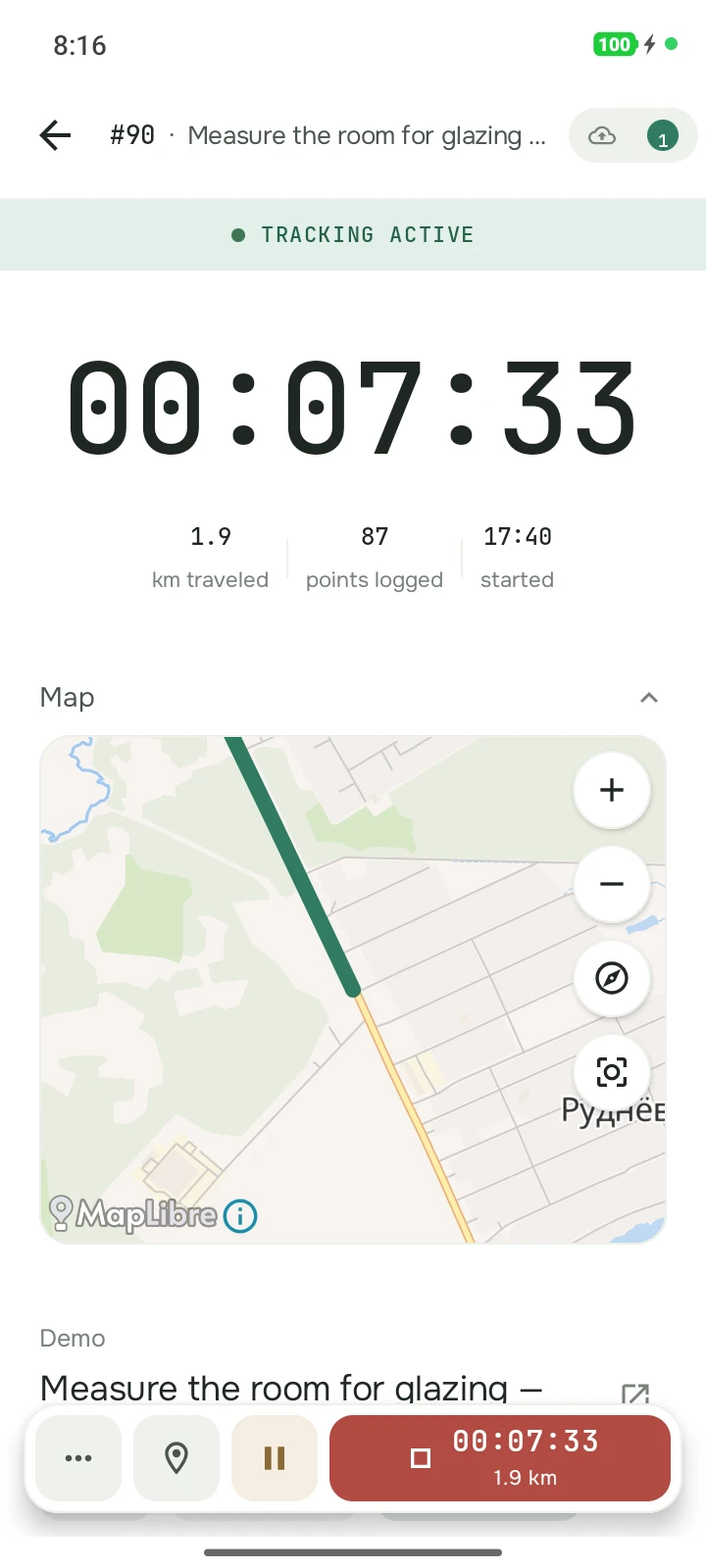
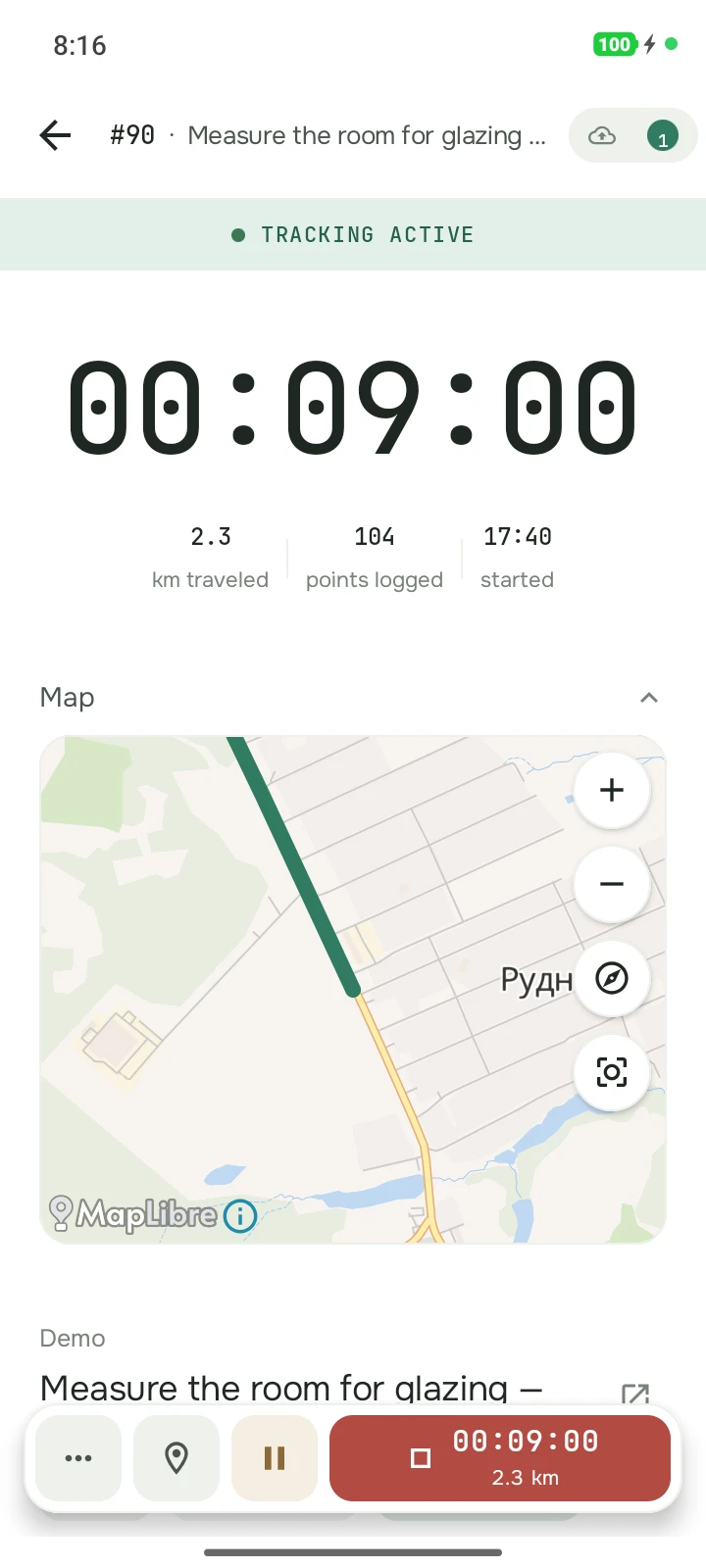
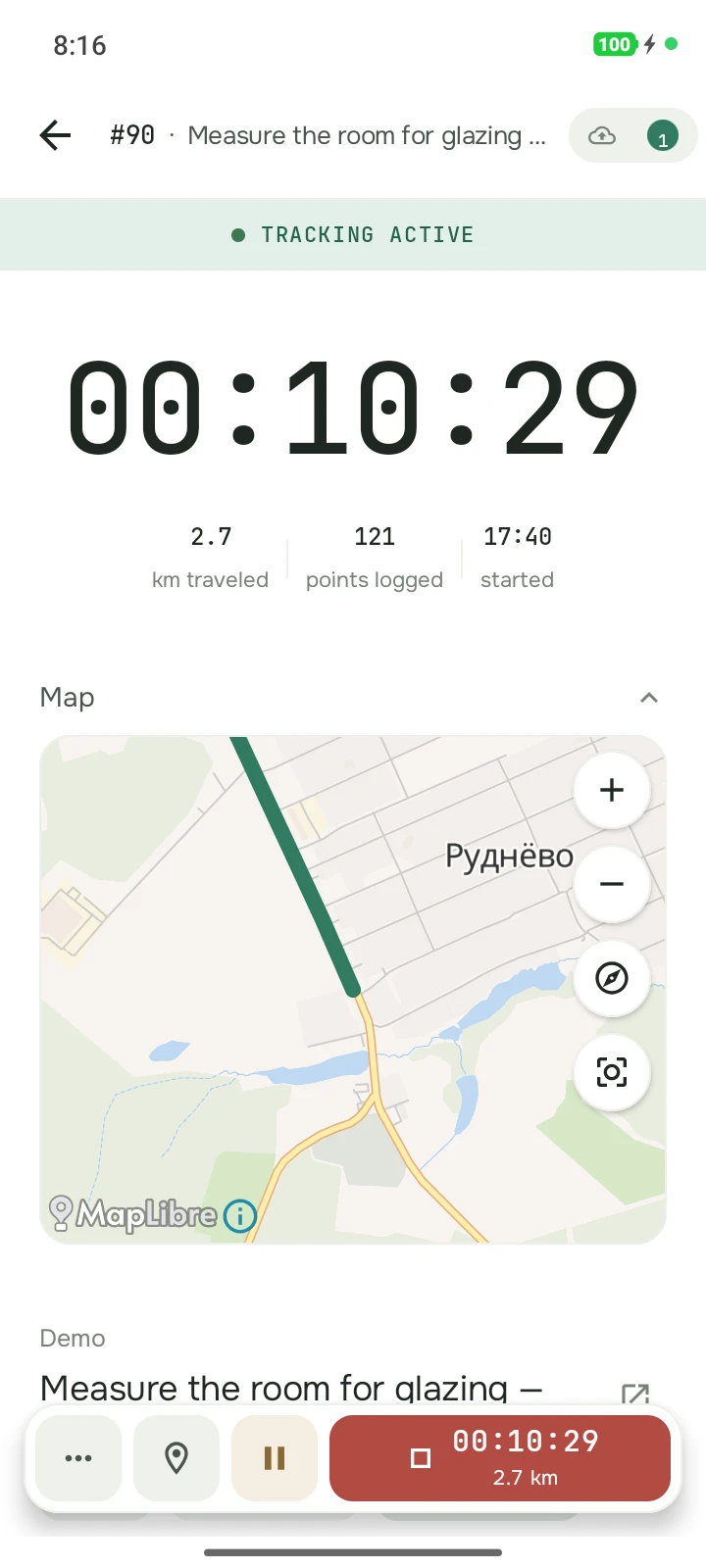
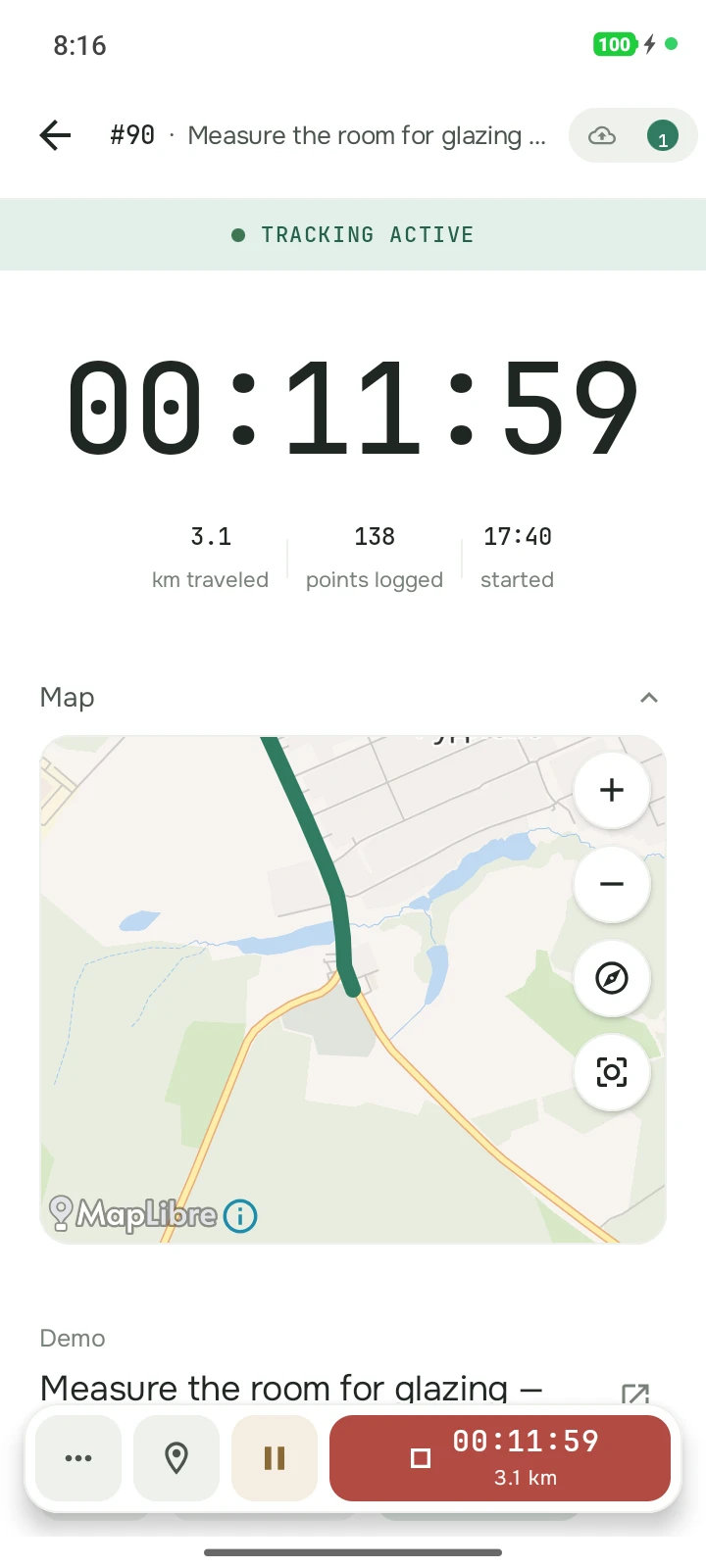
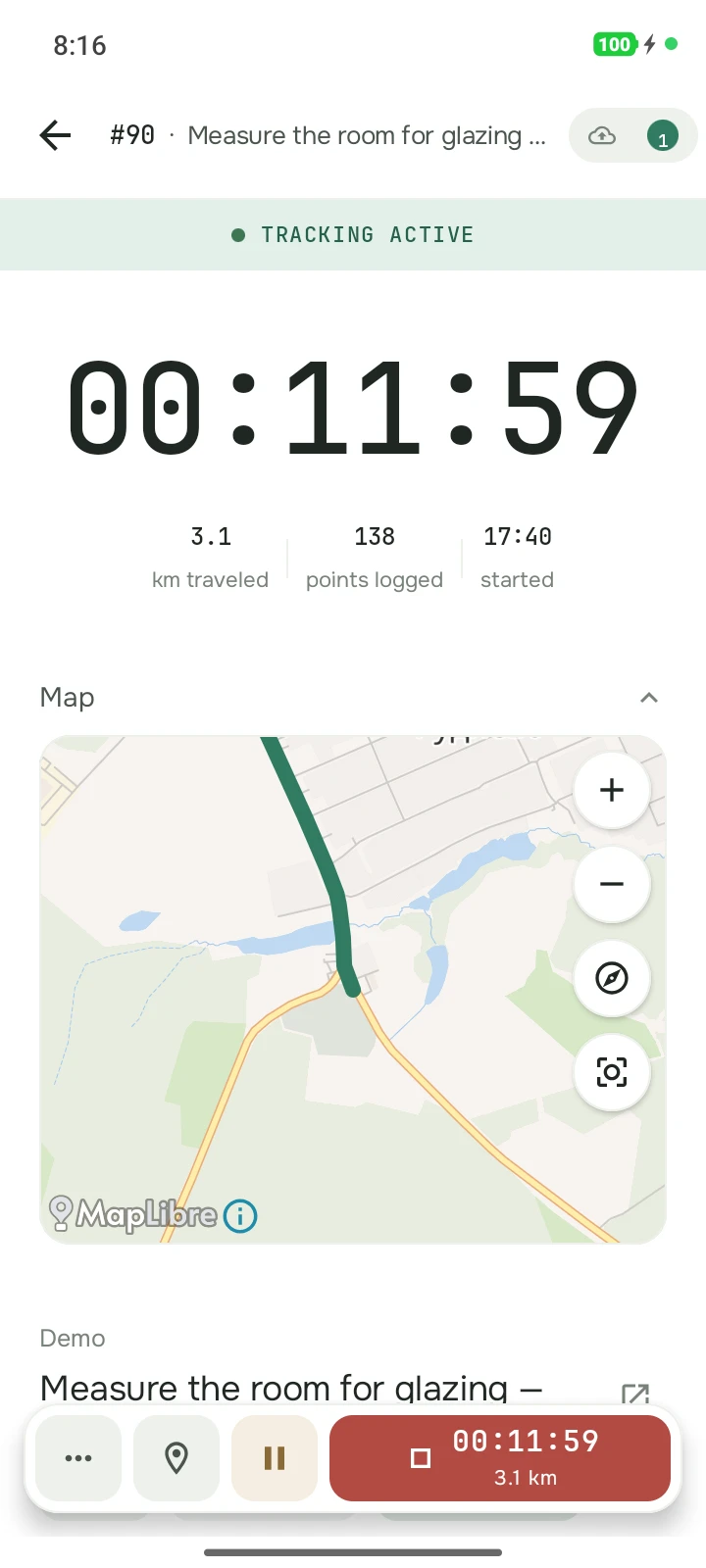
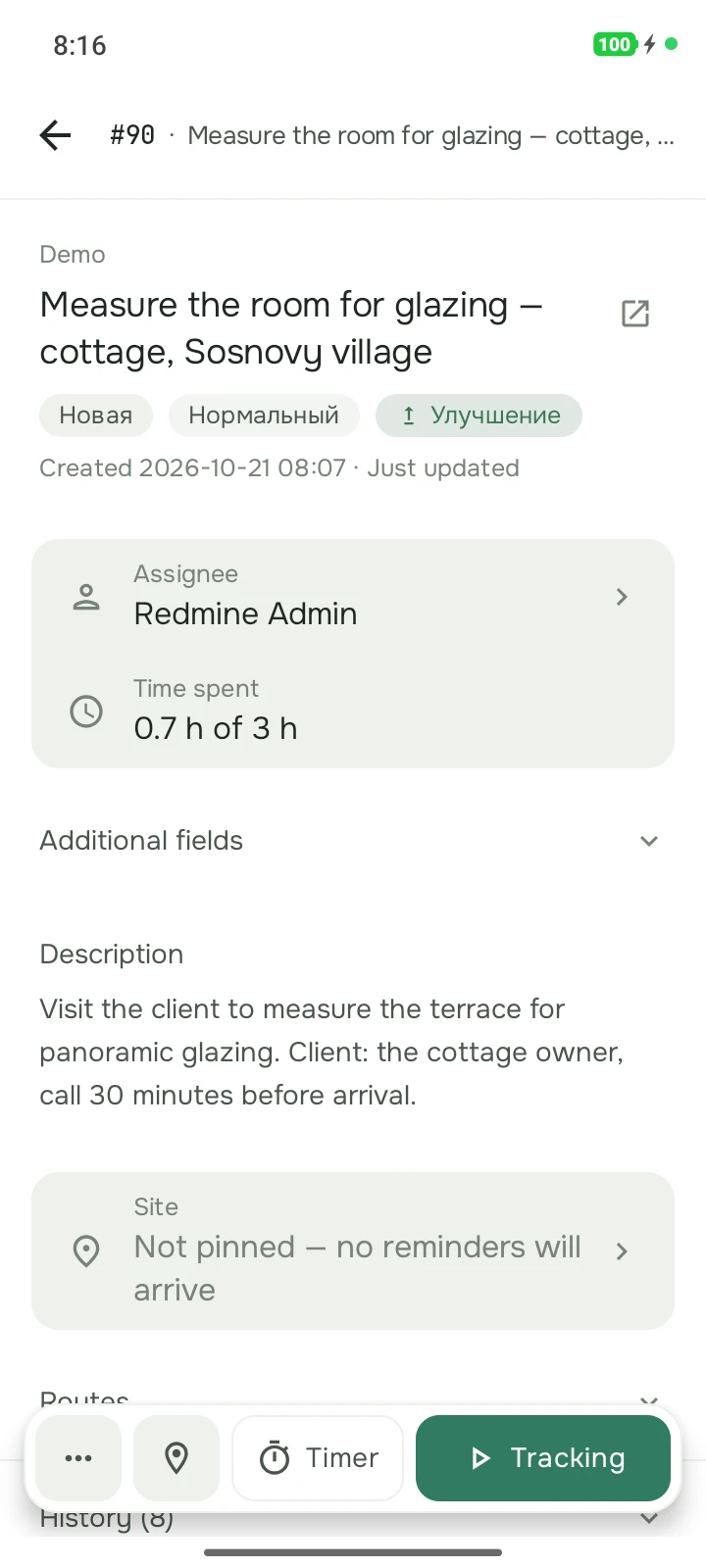
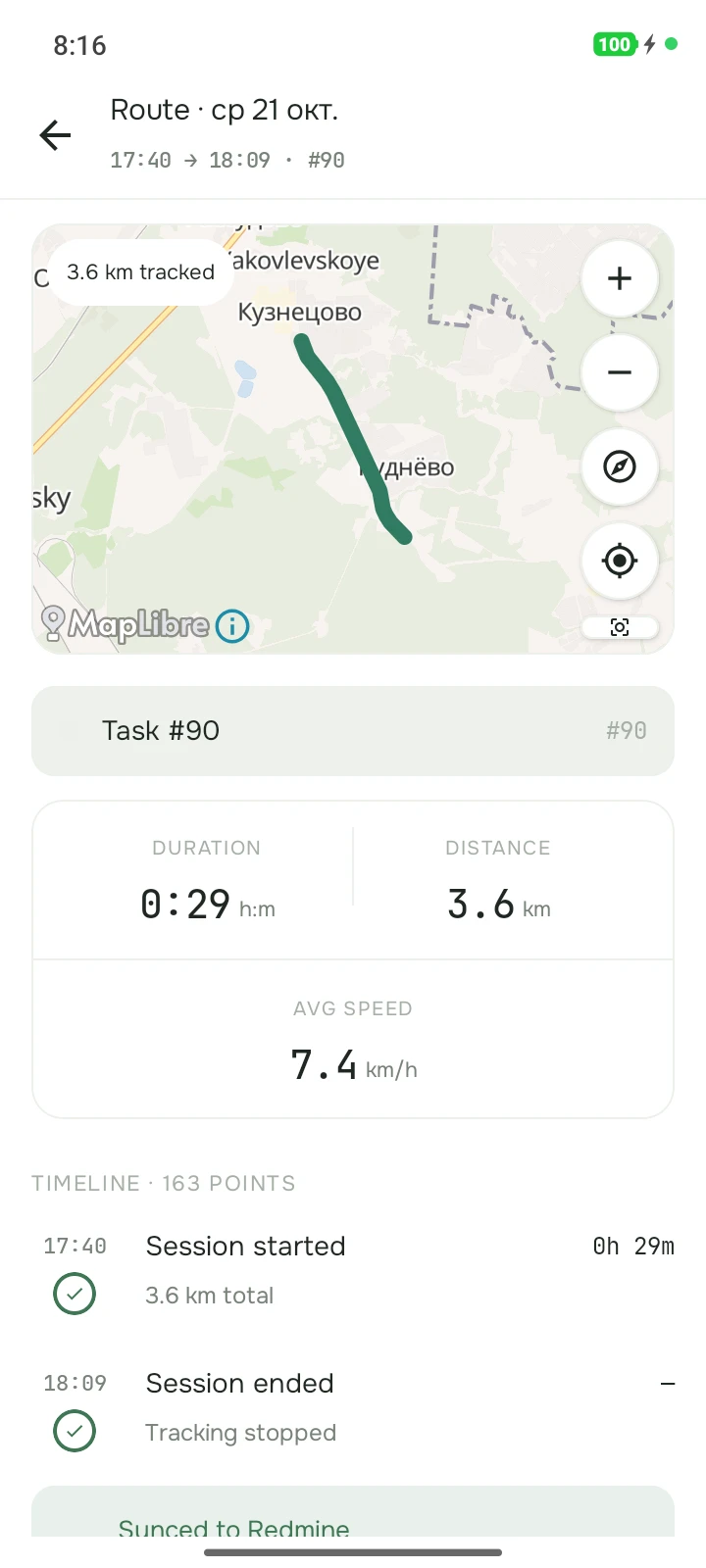
Measure the room for glazing — cottage, Sosnovy village
Visit the client to measure the terrace for panoramic glazing.
- Assignee
- Redmine Admin
- Due
- Oct 17, 17:00
- Time tracking
- 0.5 h of 3 h
- Mileage (custom field)
- 4.1 km
Comments
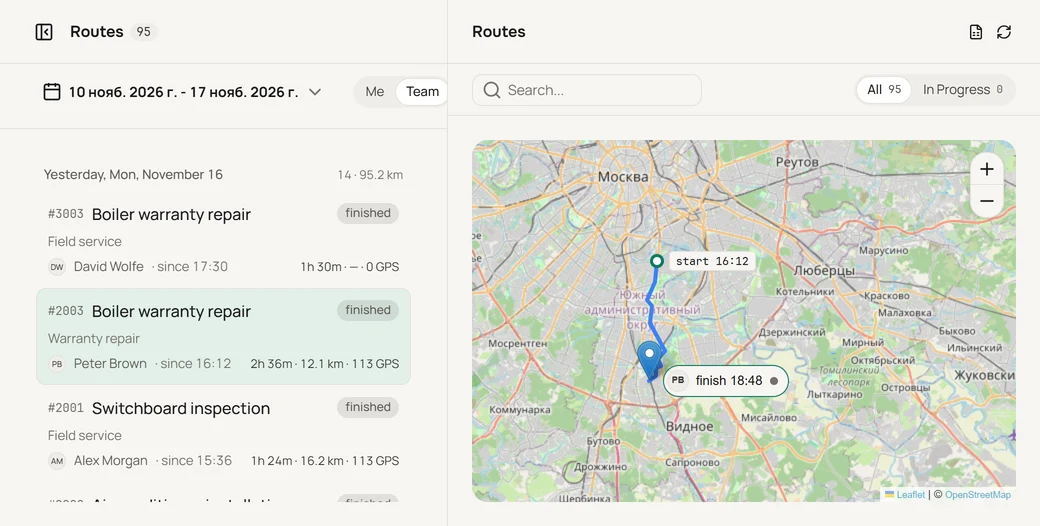
A task from the tracker, a trip with timer and GPS, the time entry — and what the manager sees afterwards in the web dashboard.
Team hours, kilometres and visits — no reports from employees
Everything comes from what employees already do in the app: task sessions, on-site check-ins and visits. No reports to fill in; visits need task geofences.
Hours and mileage by project
GPS mileage and session counts per employee and tracker project for the chosen period. Hours land as time entries in your tracker's tasks, where its API allows.
How long a visit usually takes
Click a point on the map: who was there this week or month, how often, and the typical visit length — by GPS and by timer separately.
A visit registry with addresses
Every site visit: task subject, place address, arrival, departure and duration. Visits come from task geofences, for employees who turned on the visit log.
The team's day, minute by minute
Pick a date and scrub through the day: where everyone was and when timers ran. One person's day as a list — sessions, pauses, check-ins, visits.
The owner or an admin turns on the team map and stats; who sees whom is in the Control section. The typical duration appears from five visits.
For teams that work in the field
Construction
A site is a task in your tracker with a geofence. The foreman starts a session on it on site, and arrival and departure land in the visit registry. The site's history on the map shows who was there this week or month, how often, and how long a visit usually takes, by GPS and by timer separately.
Logistics
A run or a delivery is a task in your tracker, and the driver tracks it with a GPS session. Mileage and session counts add up per employee and tracker project for the chosen period. You can scrub through the team's day: where everyone was and when timers ran.
Field service
A service request is a task in your tracker; the engineer starts a timer or GPS on it. Hours go to that task as time entries — in trackers that accept them. The app reminds about a forgotten timer, and it can be stopped at a chosen time. The engineer's day as a list: sessions, pauses, check-ins, visits.
Work records, not people surveillance
What to tell your team when they ask "are you tracking us?"
- Coordinates are recorded only inside a task session that the employee starts. Session closed — recording stops.
- On the team map a person is visible while their session runs. "Who is nearby?" shows the last point of a session that ended no more than 12 hours ago.
- The team map and stats are off by default. A manager sees only people who share a tracker project with them; details are in the Control section.
- Employees turn on the visit log themselves, with separate consent. The visits map groups check-ins into squares of about 250 m — no exact coordinates.
- An employee can leave the organization on their own, and new collection for it stops at once.
On top of the tracker you already have
Tasks don't move anywhere. Comments and statuses go back into the tracker, and so does time where the tracker accepts it.
Limitations14
- Jira CloudJira Cloud only — our decision; Server and Data Center aren't supported.
- Jira CloudNo web sign-in — Atlassian's limitation. Sign in from the app.
- LinearTime isn't written back — its API doesn't accept time entries; the entry stays in Taskloc.
- GitHubTime isn't written back — its API doesn't accept time entries; the entry stays in Taskloc.
- GitHubAttachments aren't sent to the task — its API doesn't accept task files; visit photos stay in Taskloc.
- TaigaTime isn't written back — its API doesn't accept time entries; the entry stays in Taskloc.
- PyrusTime is written back as a comment — its API has no separate time entry; the full entry stays in Taskloc.
- MegaplanTime is written back as a comment — its API has no separate time entry; the full entry stays in Taskloc.
- YouGileTime isn't written back — its API doesn't accept time entries; the entry stays in Taskloc.
- YouGileAttachments aren't sent to the task — its API doesn't accept task files; visit photos stay in Taskloc.
- Aspro.CloudAttachments aren't sent to the task — its API doesn't accept task files; visit photos stay in Taskloc.
- monday.comTime isn't written back — its API doesn't accept time entries; the entry stays in Taskloc.
- AsanaAddress, mileage and time entries depend on your Asana plan — not available on Personal; the full entry stays in Taskloc.
- TrelloTime isn't written back — its API doesn't accept time entries; the entry stays in Taskloc.
Your team on the map in five steps
- 01
Sign in with your tracker
Install the Android app and sign in with your task-tracker account — that creates your Taskloc account.
- 02
Create a team organization
Profile menu → "Manage organizations" → "New organization". Inviting people needs the Team plan or the trial, which the owner turns on.
- 03
Invite your employees
By email, with a role: member, manager or admin. The invite arrives in the app or as an email link. You can copy the link in the web dashboard and send it in a messenger.
- 04
Employees sign in and accept
Each installs the app and signs in with their tracker account — by login and password, in the browser or with a personal API key, depending on the tracker.
- 05
Turn on the map and stats
They are off by default. The owner or an admin turns them on: "Team" tab → "Team data access". From then on the team is visible in the app and the web dashboard.
The employee app is Android only. No plugins to install in the tracker; in some trackers an admin enables API access.
Who sees what, and what can be changed
Roles
Four roles: owner, admin, manager, member. The owner and admins see the whole organization. A manager sees on the map, in stats, in the visit registry and in mileage the people who share a tracker project with them.
Learn moreTeam policy
The owner or an admin decides what members may do in the app: create, edit and delete tasks, change status, log time manually, start a timer or GPS, see the mileage, reports, stats and geofence sections. This keeps order in the app, it is not a lock: hard permissions are set by roles in the tracker itself.
Learn moreSession limits
How many GPS sessions and timers one employee runs at once — one to three of each kind, three by default. The limit applies to everyone, including the owner and admins.
For employees: one tap instead of a report
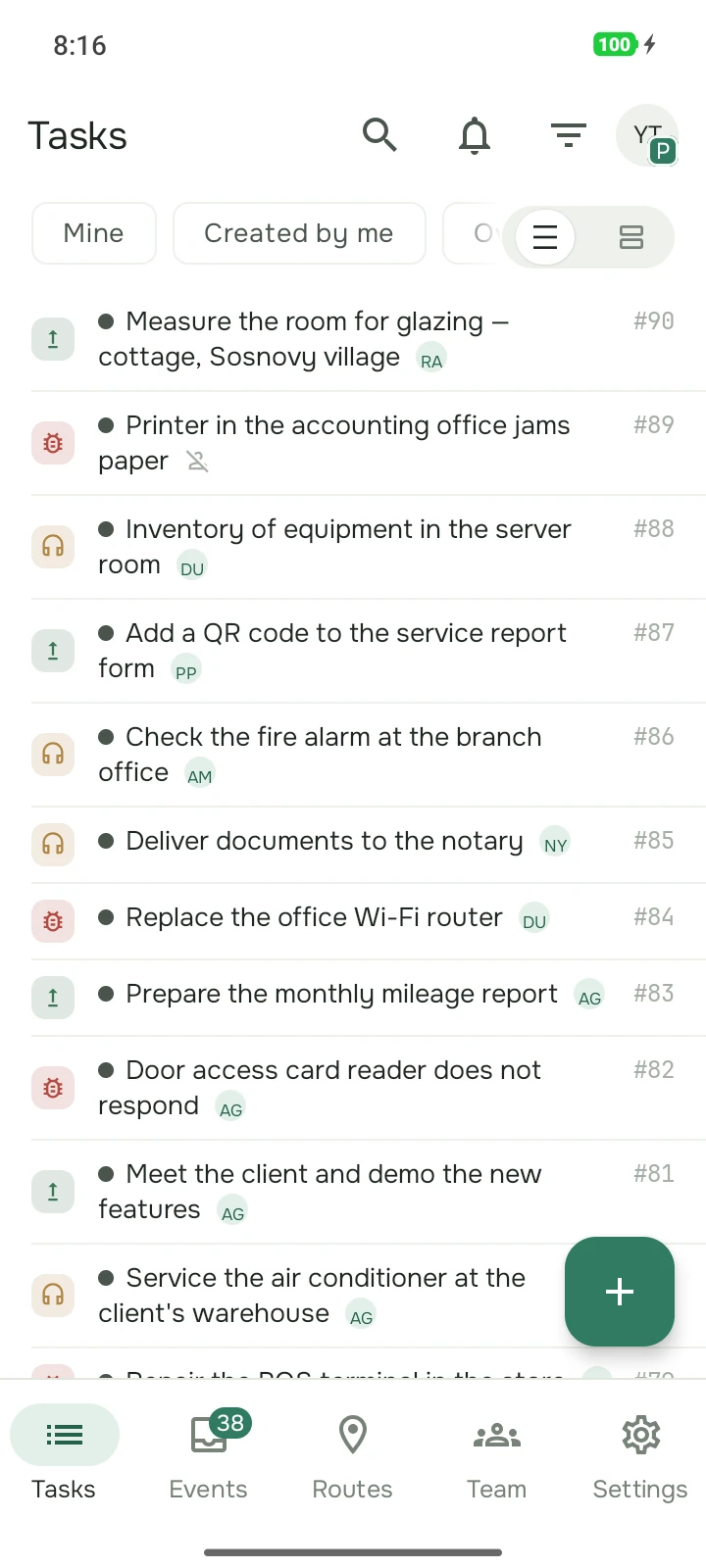
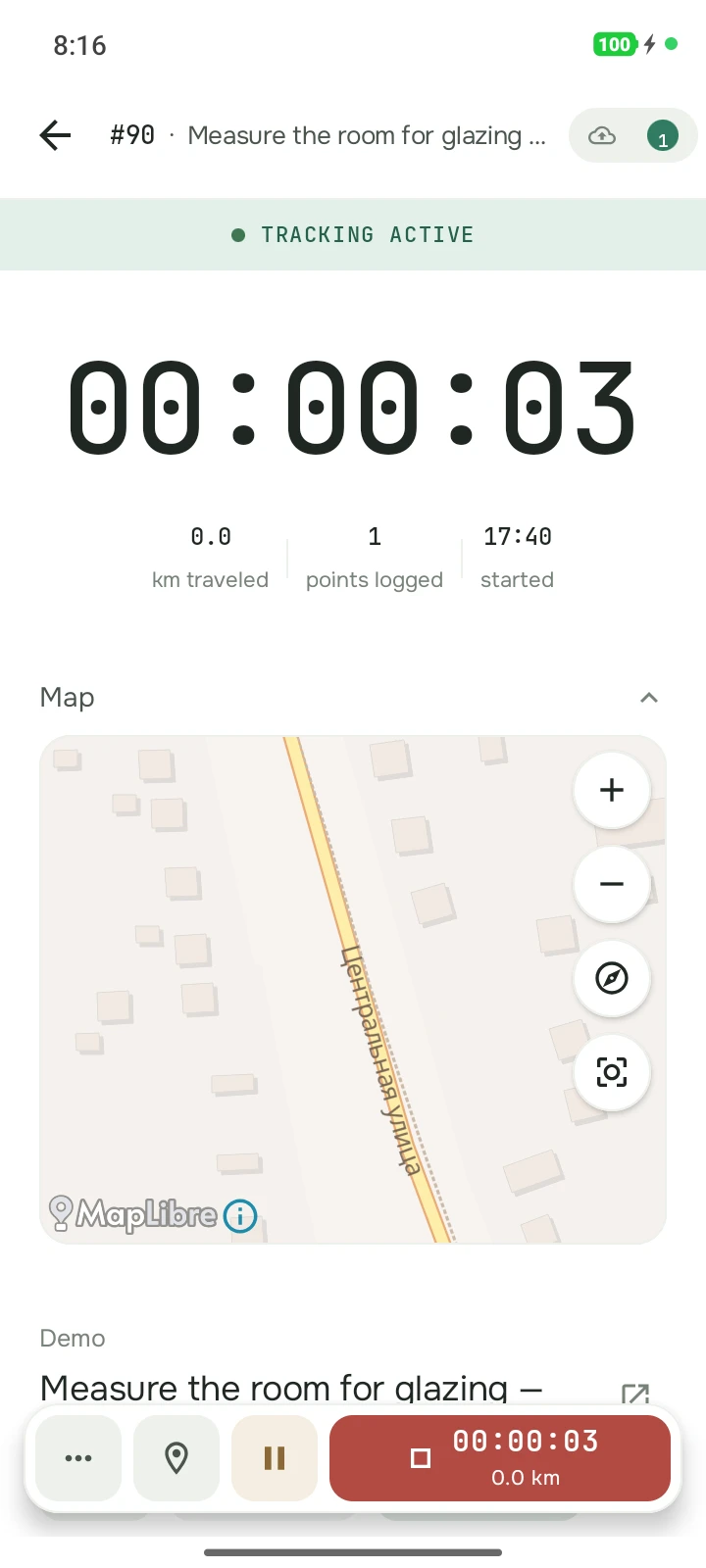
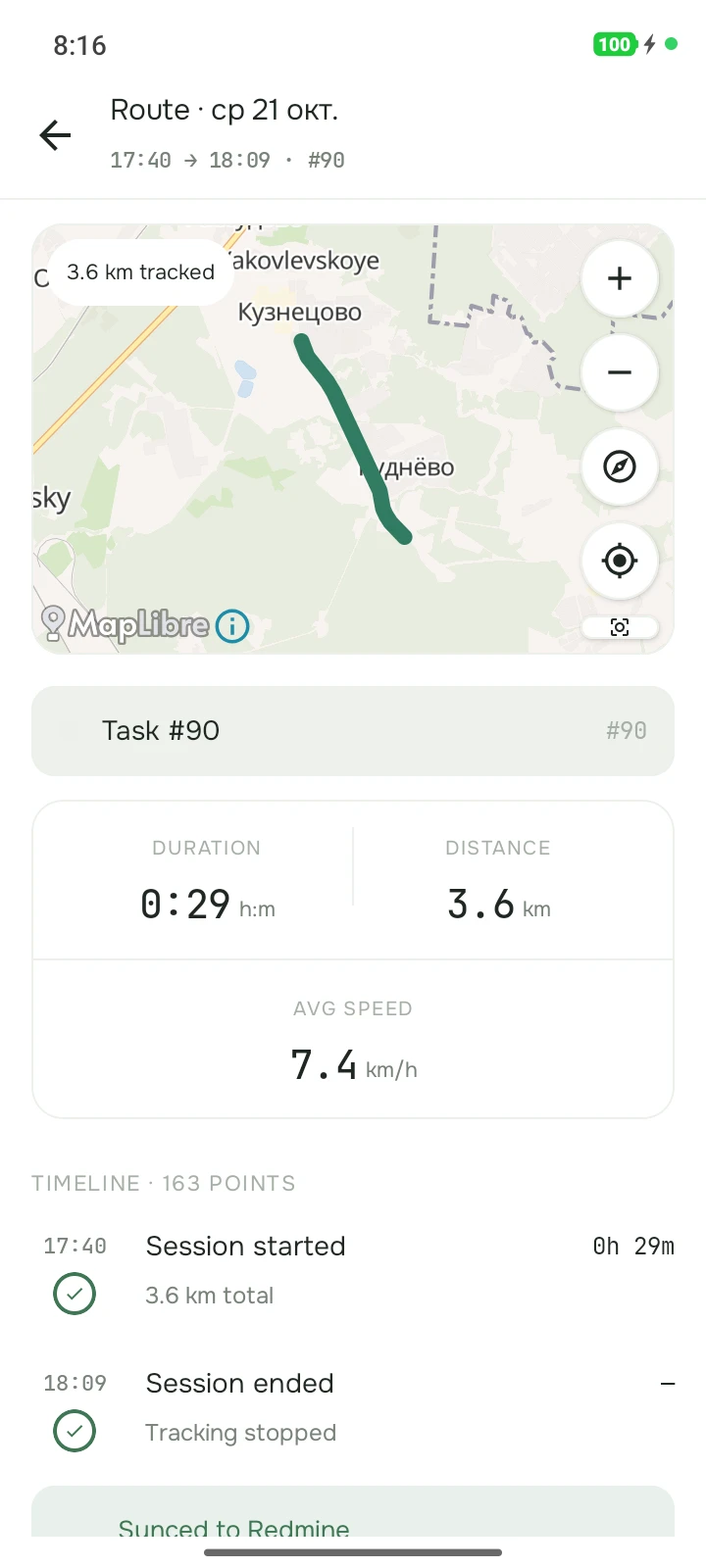
An employee picks a task from the tracker and starts a timer or GPS; time and route are recorded as the work happens. If a timer is forgotten, the app sends a reminder, and it can be stopped at a chosen time. The app can be voice-controlled, Russian only for now.
- 08:12 → 08:54#2003 Travel0:42
- 08:54 → 10:26#8412 Rack installation1:32
- 10:26 → 10:41break0:15
- 10:41 → 12:05#8412 Rack installation1:24
- 12:05 → 12:48lunch0:43
- 12:48 → 13:20#2003 Travel0:32
- 13:20 → 14:35#8398 Diagnostics1:15
- 14:35 → 14:50break0:15
- 14:50 → 16:10#8398 Diagnostics1:20
- 16:10 → 17:02#8407 Request, Severny0:52
- #8412 Rack installation2:56
- #8398 Diagnostics2:35
- #8407 Request, Severny0:52
- #2003 Travel1:14
- Lunch and breaks1:13
Every interval is one tap on arrival. From there time and route are recorded on their own. This is the report for the day: every entry is tied to its task.
Pricing
Trial: 14 days for 3 seats, no card needed.
From 10 seats, a one-off invoice paid by a card issued by a foreign bank (Robokassa). Paying by bank transfer from a Russian bank? 599 ₽ per seat per month, billed yearly.
The service is digital. Access to the paid plan opens automatically right after the payment is confirmed — in the web app on this site and in the Android app under the same account. No shipping or physical media is involved. Payment, delivery and refund terms — in the public offer
Team is a subscription: the payment is charged monthly, on the renewal date, using the payment method saved with the first payment; the amount is 299 ₽ for every seat in the organization. You can turn off auto-renewal at any time in the web app — access stays until the end of the paid period.
Outside Russia and the CIS? We accept MIR cards of banks in Russia and the CIS and payments via SBP. A card issued by a foreign bank is accepted as a one-off invoice (Robokassa) at 590 ₽ per seat per month or 5 900 ₽ per seat per year, without auto-renewal. Self-hosted by a card issued by a foreign bank costs 990 ₽ per seat per month, billed yearly. Write to us — we'll send you a payment link. Write to us
Questions
How do I get my team started?
You create the team organization in the Android app and send invites by email, from the app or the web dashboard. Each employee installs the app and signs in with their tracker account. Redmine, Taiga, Megaplan and YouGile use their usual login and password. Yandex Tracker, Jira Cloud and Linear sign in through the browser. Most other trackers need a personal API key; in Aspro.Cloud the portal admin issues it. No plugins to install in the tracker; in some trackers an admin enables API access.
Can we try it with the team for free?
Yes. The owner of a team organization can turn on a Team trial once: 14 days, 3 seats including the owner, no bank card linked and no payment. Start it in the app or in the web dashboard under "Subscription". When it ends, the organization moves to Free: stats are visible for 30 days, routes are kept for 90 days, and no new members can join.
How many trackers are supported, and can I connect two at once?
19 trackers are supported, including Jira Cloud, Redmine, Bitrix24, OpenProject, Linear and Trello. You can connect several to one account: the task list combines them, and each tracker gets its own tab with its own filters.
Do I need to install a plugin in the tracker?
No. Taskloc is not a plugin inside the tracker but a mobile app on top of it. Each employee connects their own tracker account, and the app acts on their behalf, with their permissions. In some trackers an admin only needs to enable API access.
Do Jira, Bitrix24 or Redmine have GPS of their own?
No. None of the supported trackers has a GPS route, mileage or a location tied to a task — at most you can store an address in a text field. Taskloc adds the route, the on-site check-in and geofences on top of the tracker; the tasks themselves stay in it.
Does Taskloc work with a tracker that has no time tracking?
Yes. In GitHub, Linear, Taiga, YouGile, monday.com and Trello the hours are not sent to the tracker: there is no time log to write them to. The time is still counted and stays in Taskloc — it shows up in stats and web dashboard reports, while tasks, comments, statuses and routes work as usual.
Can I track time without GPS?
Yes. The timer counts time on a task with no route and no location permission — handy for office work. When it stops, the time goes to the tracker the same way as after a GPS session. The organization owner can hide the timer button with a team policy.
Can a manager see where an employee is right now?
Only while the employee has a session running: the team map shows the latest point of an active session. Once the session stops, the employee disappears from the live map. In the "Who is nearby?" search their last point stays visible for up to 12 hours after the session ends.
Who sees which data inside an organization?
An employee sees their own routes and time. The team map and team stats are off by default; the owner or an admin turns them on. The owner and admins see the whole organization. A manager sees on the map, in stats, in the visit registry and in mileage the people who share a tracker project with them.
Does the app track an employee outside working hours?
No. Coordinates are recorded only while a GPS session is active on a specific task; the timer records no coordinates at all. The employee starts the session themselves; outside a session the app collects no location.
Can I find out who viewed my location?
Yes. Every time someone else opens your location data, it is written to a log: who, when, in which role and what they opened. Only you see the log — in the app (Settings → Tracking) and on your profile in the web dashboard. Entries are kept for a year.
Does an employee have to consent to GPS time tracking?
Your company sets the rules: GPS time tracking is introduced by an internal policy that employees acknowledge, and your company remains the controller of the personal data. On the product side the limits are technical: coordinates are recorded only inside a session the employee started. We don't provide legal wording.
Which apps are available?
An Android app for employees and a web dashboard. There is no iPhone app.
What happens if I lose internet during tracking?
GPS and the timer keep running. All data is saved on the device and automatically synced when the connection is restored.
Where are routes and GPS data stored?
It depends on how you deployed the system. With self-hosted, routes and GPS data stay on your own server — we have no access to them. In the cloud version, data is stored on our servers in Russia in compliance with 152-FZ: we don't sell it or use it for our own purposes. Tracker credentials stay on the device in the Android Keystore by default. The server does not store tracker credentials: at sign-in it checks them once and does not keep them.
What does it cost and can I get a refund?
The Free plan costs nothing and covers one person in an organization. The Team plan is 299 ₽ per seat per month, from a single seat; you pay by card or SBP in the web app, and access opens right after the payment is confirmed. Ask within 14 calendar days of the first payment and it is refunded in full; after that, instead of a refund you turn off auto-renewal and keep the service until the paid period ends.
What else do I pay for besides seats?
Nothing beyond seats. The Team price is per seat only: the number of projects, tasks, time entries and Excel exports is not metered or billed, and there is no separate usage fee. A renewal costs the same per-seat price shown on this page times the number of seats in the organization; every charge comes with a receipt sent to the owner's email. The trial needs no card; when it ends, the organization moves to Free and its data is not deleted.
How do I cancel the subscription renewal?
In the web app, in the billing section: the "Cancel renewal" button works at any moment and without contacting support. The paid period is not refunded — Team keeps working until the end of the period, after that the organization moves to Free. Resuming the renewal before that date is free.